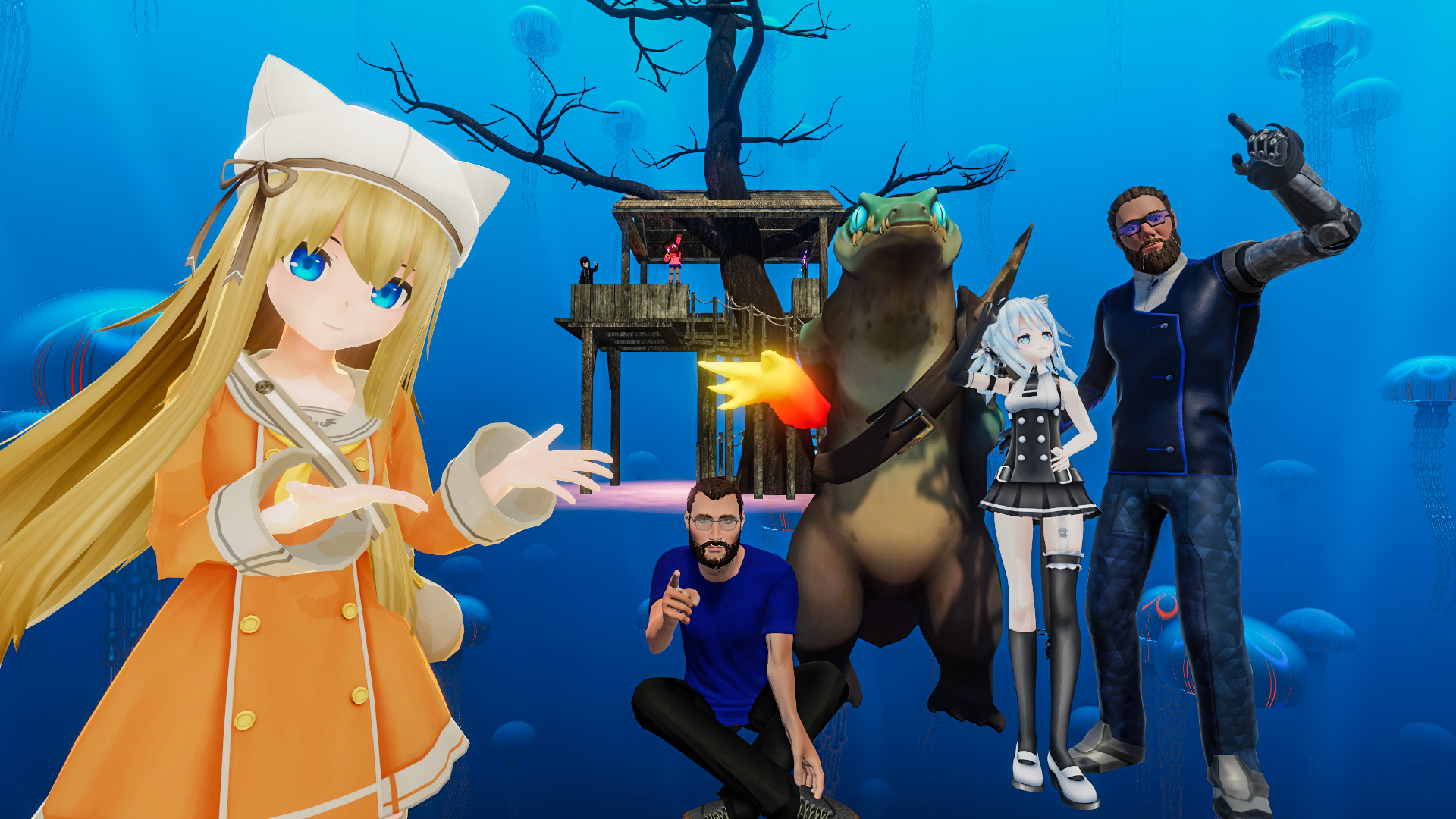
VRChat is a free social platform where you explore user-made worlds and talk to people through avatars, in a headset or on a flat screen. It came out on Steam Early Access on February 1, 2017, though an early prototype first ran on the Oculus Rift DK1 back in 2014. This guide covers your first hour inside, then how VRChat got here.
Where You Can Play VRChat
You don’t need a headset. Desktop mode works with a keyboard and mouse, and the mobile apps let you hang out from a phone. VR is still the best way to play, because full hand and body movement is what makes the social side work.
| Platform | Store | Price | Notes |
|---|---|---|---|
| Windows PC (VR or desktop) | Steam, Meta PC app | Free | Widest world and avatar selection |
| Meta Quest headsets | Meta Horizon Store | Free | Standalone; only Quest-compatible avatars and worlds |
| Android phones and tablets | Google Play | Free | Touch controls, mobile-compatible content |
| iPhone and iPad | App Store | Free | Newest platform, same mobile content limits |
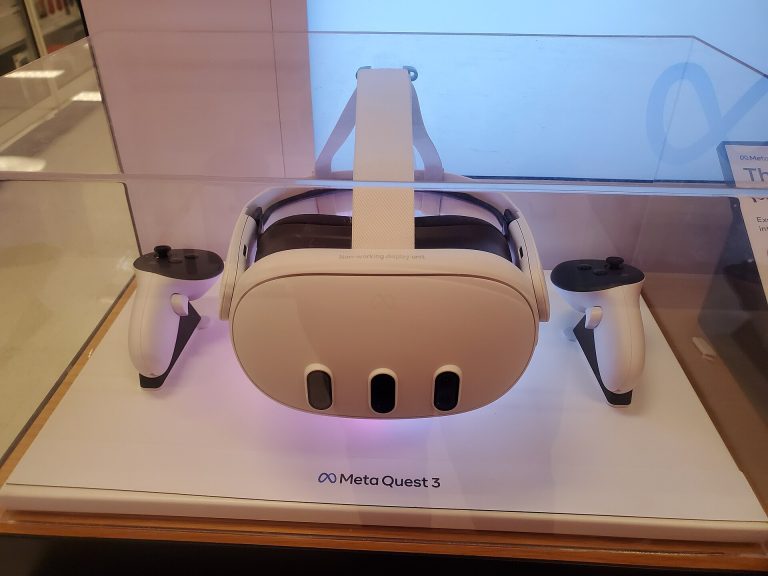
If you’re on a Meta Quest 3, you can play standalone or stream the PC version over Air Link or Steam Link for heavier worlds and avatars. Our Meta Quest 3 guide covers setup.
Your First Hour in VRChat
Quick steps: getting started
- Install VRChat for your platform.
- Create a VRChat account.
- Learn the Quick Menu and Main Menu.
- Pick an avatar.
- Adjust your safety settings.
- Join an instance.
- Add a few friends.
1. Install and create your account
Download VRChat from the store that matches your device. Then sign up for a VRChat account with an email address. You can sign in through Steam or Meta, but a full VRChat account lets you upload content and carry your friends list across devices. You must be at least 13 to use the service.
2. Learn the two menus
The Quick Menu is the one you’ll use most. It handles muting, blocking, emotes, your mic and quick world info. The Main Menu is the bigger panel for browsing worlds, avatars, friends and settings. Spend five minutes in the default home world clicking through both before you go anywhere busy.
3. Choose an avatar
New accounts get a set of default avatars, and many public worlds work as “avatar worlds” with walls of pedestals you can click to clone. Look at the performance rank shown on each one. It runs from Excellent down to Very Poor, and heavy avatars tank framerates for everyone around you. On Quest and mobile, Very Poor avatars are hidden from other players by default.
4. Set safety before you socialize
VRChat’s Safety menu decides which avatar features, sounds, shaders and animations you see from other players. Your choices depend on Trust Rank, which the system assigns from your time in the app and your activity.
| Trust Rank | What it means |
|---|---|
| Visitor | Brand new account; can’t upload content |
| New User | Unlocks uploading worlds and avatars |
| User | Established activity |
| Known User | Longer, consistent history |
| Trusted User | Highest standard rank |
A sensible start: show full avatar features for friends, and limit the rest for Visitors and New Users. That stops loud or flashing avatars from strangers.
Comfort check
Some worlds use smooth locomotion, spinning effects or bright strobes. If you get motion sick, turn on comfort options like snap turning and teleport where a world allows it, and take breaks every 20-30 minutes for your first few sessions.
5. Join or create an instance
Every world runs as separate copies called instances. The type controls who can get in:
| Instance type | Who can join |
|---|---|
| Public | Anyone |
| Friends+ | Your friends and their friends |
| Friends | Only your friends |
| Invite+ | Invited players, who can invite others |
| Invite | Only people you invite |
| Group / Group+ / Group Public | Members of a VRChat Group, at different levels of openness |
For a gentle start, open a Friends or Invite instance of a calm world and explore alone. When you join Public, chill hangout and game worlds are friendlier than the busiest trending lobbies.
6. Add friends and use groups
Point at a player, open their profile from the Quick Menu, and send a friend request. Groups help more than random lobbies. Communities around dancing, language practice, roleplay and specific games run regular events, and you’ll meet the same people week to week.
Player tip
Go to a scheduled community event in your first week. Lobbies feel random, but events give you a reason to talk and turn strangers into a friends list fast.
7. Report and block when needed
Block hides a user from you and you from them. Mute only silences their voice. To report a user or world, open the profile in the menu and choose Report, or file a ticket through VRChat’s support site. The team reviews reports and can ban accounts. Desktop players can press Shift+Esc to trigger Safe Mode, which instantly turns off avatar features for everyone around you.
VRChat+ and Credits
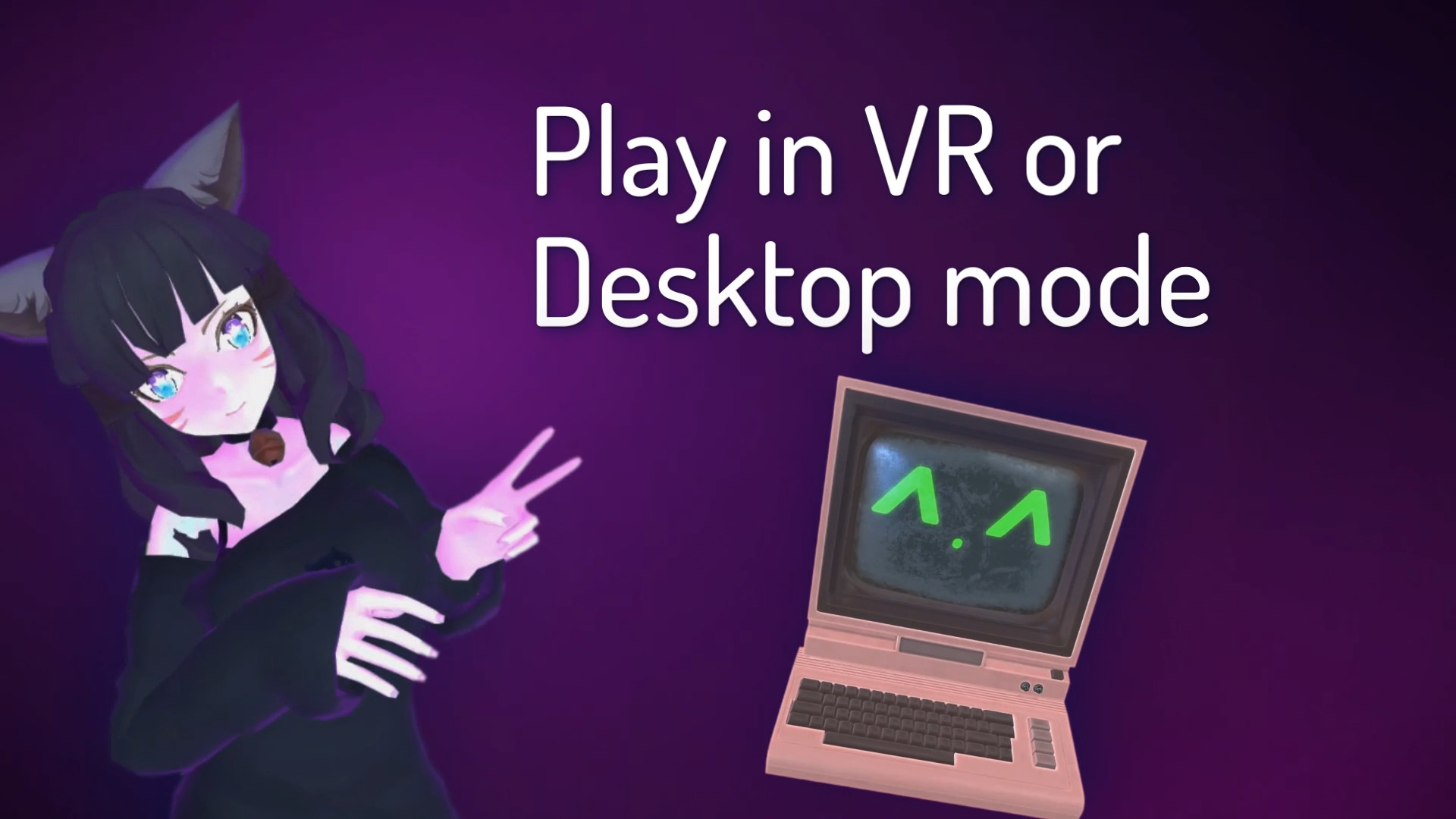
VRChat+ is the optional subscription. It costs $9.99 a month or $99.99 a year. It adds a custom profile icon, more favorite avatar slots, a supporter badge and extras like custom emoji and stickers. None of it is needed to enjoy the game. It mostly helps fund the free platform.
VRChat Credits are a separate in-app currency for the creator economy, used to buy items, perks and avatars that creators sell.
The Avatar Marketplace and Building Your Own Content
The Avatar Marketplace is VRChat’s first store built into the app. You can browse avatars, preview them, and pay with Credits without leaving VRChat. Before, avatar buyers had to use outside storefronts and then upload files themselves through Unity.
To build your own, use the VRChat Creator Companion. It installs the right Unity version and the SDK for avatars or worlds. World interactivity runs on Udon, VRChat’s visual scripting system. Selling through the Marketplace has separate eligibility rules from uploading, so read VRChat’s current creator requirements before you plan a paid avatar. Facial expression is improving too, with VRChat native face tracking now in open beta for supported headsets.
A Short History of VRChat
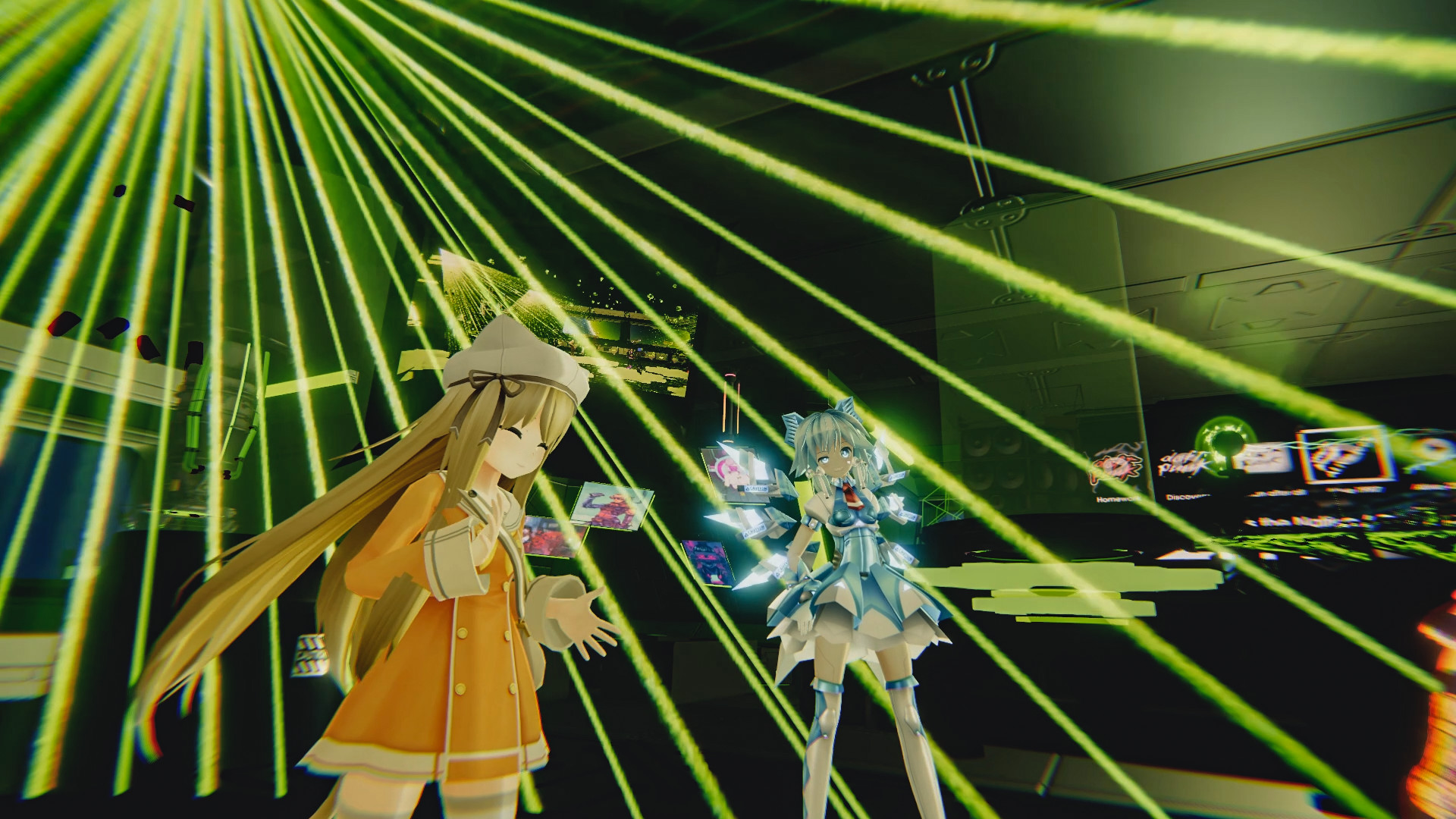
Graham Gaylor and Jesse Joudrey founded VRChat in 2014. It started as a small multiplayer experiment on the Oculus Rift DK1 developer kit.
| Year | Milestone |
|---|---|
| 2014 | Prototype on Oculus Rift DK1; company founded |
| 2017 | Steam Early Access launch, February 1 |
| Late 2017 to early 2018 | Viral surge from streams and memes, including “Ugandan Knuckles” |
| 2018 | Trust and Safety system introduced |
| 2019 | Launch on the original Oculus Quest |
| 2020 | Udon scripting released; VRChat+ launched |
| 2021 | $80 million Series D funding round |
| 2022 | Easy Anti-Cheat added, ending client mods |
| 2023 | Android mobile open beta |
| 2024 | Creator economy and Credits launch |
| 2025 | iOS app and Avatar Marketplace |
The 2018 surge brought a flood of new players and a harassment problem. The team publicly asked users to behave, and soon added the Trust system. The 2022 anti-cheat change was controversial because it also blocked popular accessibility and quality-of-life mods. VRChat later added many of those features to the game itself.
Is VRChat Worth Your Time?
Yes, if you want people more than objectives. VRChat has no story or goal, so your sessions depend on who you meet and which worlds you find. If you want something more structured, our list of VR games worth your time in every genre is a better starting point. For long VRChat nights on Quest, a better head strap is the upgrade that matters most. Our Meta Quest 3 accessories roundup covers the options.
FAQ
When did VRChat come out?
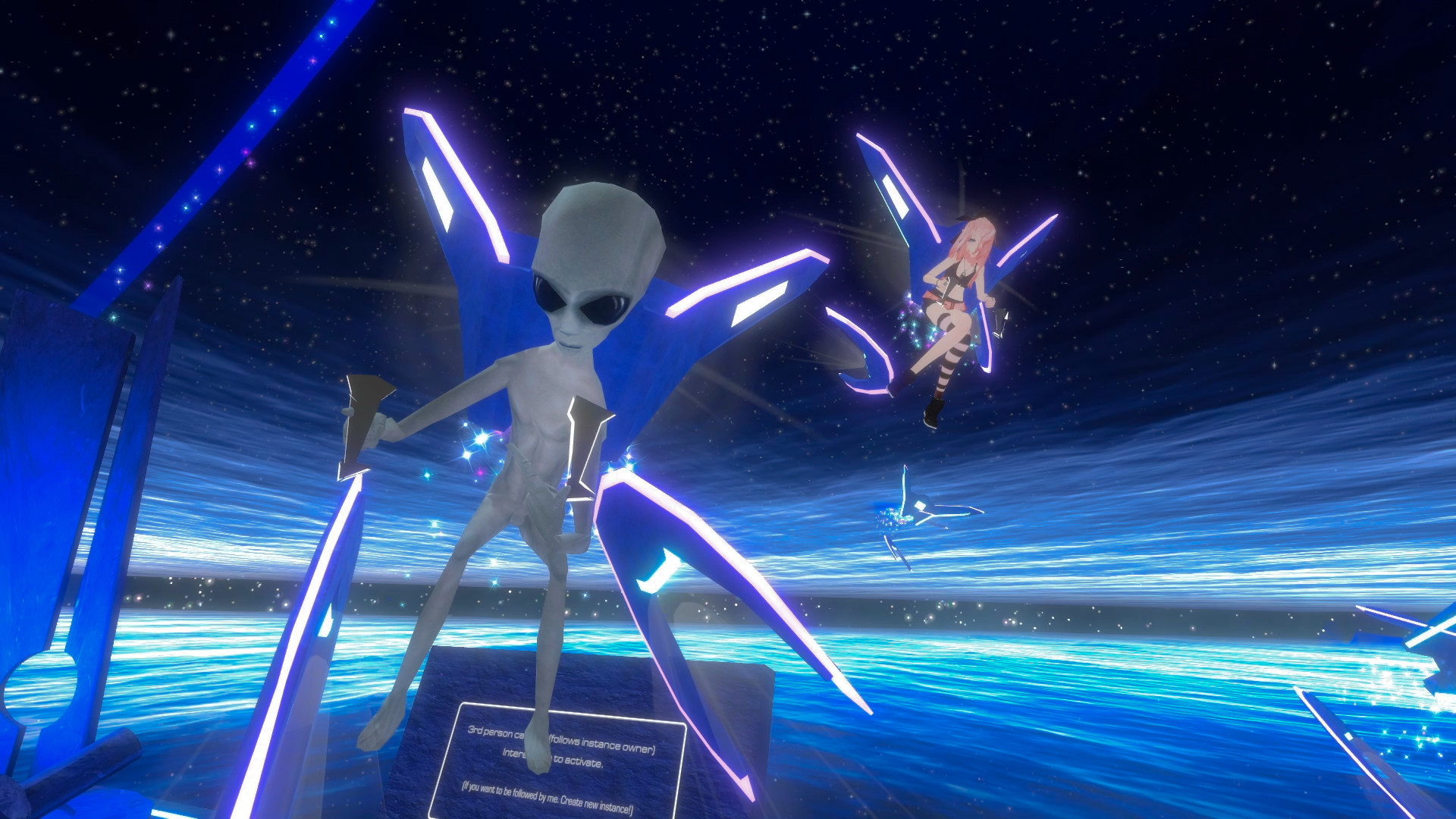
VRChat launched on Steam Early Access on February 1, 2017. An earlier prototype ran on the Oculus Rift DK1 in 2014, and a standalone version for the original Oculus Quest followed later.
Is VRChat free?
Yes. The game is free on every platform. VRChat+ and Credits are optional purchases.
Can you play VRChat without a VR headset?
Yes. Desktop mode on PC and the Android and iOS apps all work without a headset. You lose full body movement, but you can still explore worlds and chat.
Why can’t I see some avatars on Quest?
Quest and mobile can only show avatars built for Android. They also hide Very Poor performance avatars by default to protect framerates, and show a fallback in their place.
How old do you need to be to play VRChat?
The minimum age is 13. Some worlds and features are for adults only, and VRChat has added age verification for those.